
Hikvision Hik-Connect Setup in Kuwait | Phone Viewing
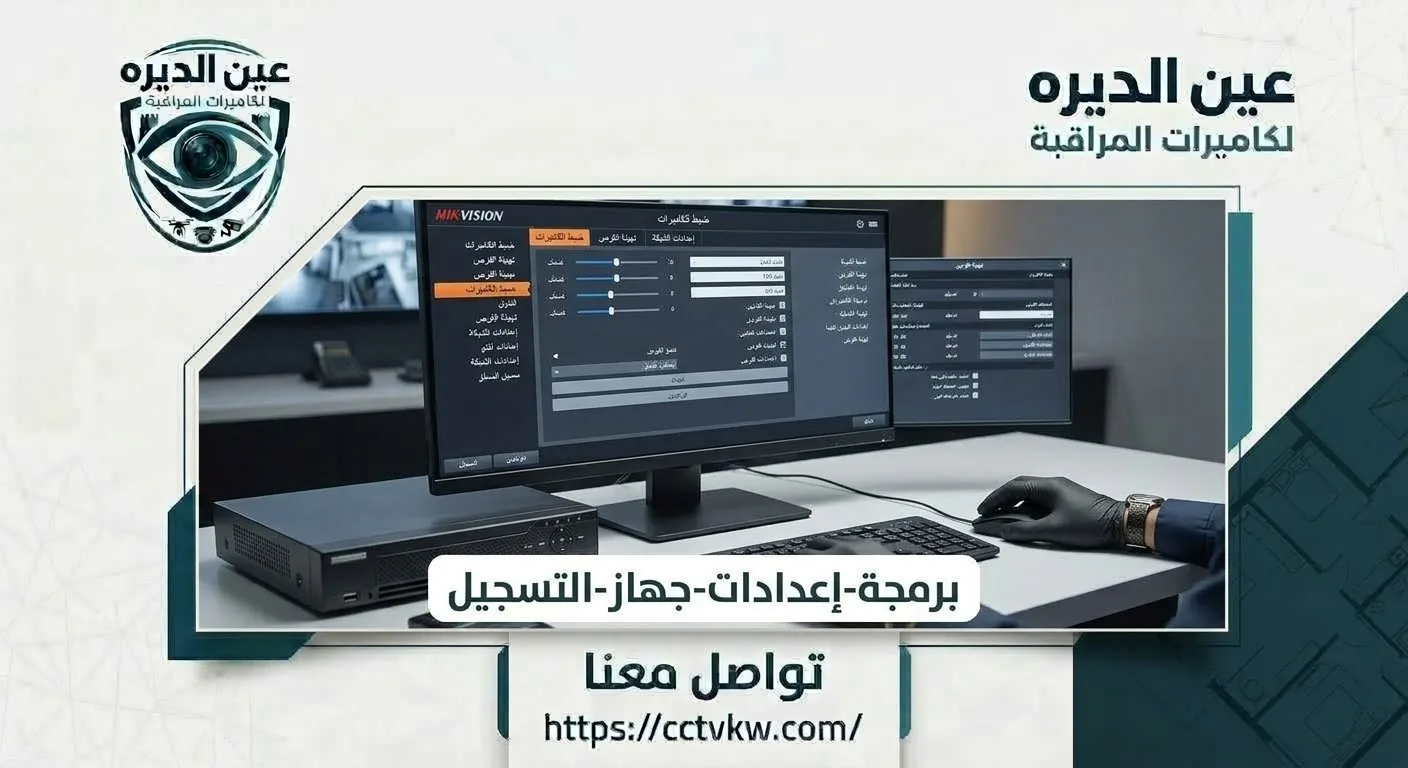
Need Hikvision Hik-Connect setup in Kuwait for iPhone or Android? Your Hikvision recorder may show images locally while the app reports Offline or refuses to add it to a new account. The correct approach depends on Platform Access, account ownership and networking, not deleting all settings. This guide is specific to Hikvision equipment, including the name customers may spell differently in Arabic, and covers device addition, alerts and secure sharing. For general mobile CCTV problems across brands, use the separate phone troubleshooting article.
Before Hik-Connect setup: required information
Prepare the recorder model and whether it is a DVR or NVR, and verify that it works locally. You need an authorized account and the official app; QR code, serial number or device verification information may be required according to the model. Do not share codes or passwords in public groups. If the device belongs to a previous installer account, ownership must be resolved first. Check router connectivity, date and time to avoid misdiagnosing a camera problem.
Before adding Hikvision equipment, identify whether the application should access one multi-channel recorder or several standalone cameras. Some users attempt to add each camera separately even though they are already managed through an NVR, complicating account setup. Determine who owns the official account and who only needs viewing. For a business, keep ownership under the authorized organization so equipment access is not lost when staff change.
Adding a Hikvision recorder to Hik-Connect
Sign in through the official app and use its supported addition method, such as QR or device details. Review Hik-Connect status in the recorder’s applicable network menu and complete verification. If “Device Already Added” appears, do not bypass the existing association; use authorized sharing or official unbinding procedures. Once added, test channels and playback when permitted. Menu labels may differ by firmware version, so use the specific device manual.
When the app says Device Already Added, do not treat it as an internet outage; device ownership is likely involved. With owner authorization, use official sharing or transfer procedures rather than deleting camera channels. During a shop ownership change, transfer surveillance account control as part of handover so old access does not remain open. The owner should be able to revoke permissions and add users without depending indefinitely on the original installer.
Adding an NVR to Hik-Connect may expose its channels through the appropriate permissions, so every connected IP camera does not always need independent addition. Before sharing a QR code, decide whether another user needs viewing access or ownership transfer. Managed sharing is usually more suitable for staff or family, while ownership belongs with the system administrator. If an existing account association appears, do not create multiple accounts repeatedly; identify the owner account and use official recovery or transfer procedures to preserve control.
Fixing Hikvision Platform Access Offline
If the recorder displays local video but the service reads Offline, review network cable, router, IP address, gateway and DNS where relevant. Confirm that the correct platform function is enabled for the model and that corporate network rules are not blocking access. No single DNS value fixes every network and random firmware updates are inappropriate. After changes, test on mobile data outside the premises to confirm that service access genuinely works.
With Hikvision, Offline may reflect a failed Platform Access connection even though cameras are visible on the local recorder. Review the router connection and model-specific network settings, avoiding unsupported DNS changes. A central corporate firewall may require coordinated troubleshooting. After diagnosis, do not stop at an Online icon: open an actual channel over mobile data and confirm stable streaming.
Connecting Hikvision to iPhone and Android
Use the official app compatible with the phone version, then sign into the device-owner account or accept authorized sharing. Some users create a new account and find no cameras because the recorder remains linked to the original account. Do not delete the device from the old phone without understanding the transfer method. Test first on Wi-Fi and then mobile data, with suitable permissions for each user instead of sharing the administrator password.
Moving Hikvision viewing to a new smartphone
With access to the owner account and verification method, the new phone can be configured through supported procedures without deleting NVR recordings. If the old phone is broken, use official account recovery rather than bypassing security. Before selling the old phone, revoke its session or access where supported. Transferring viewing is distinct from transferring ownership: the former may involve login or sharing, while the latter needs proper account association management.
On a new phone, first sign into the authorized account used previously and see whether the devices appear. Do not assume scanning a QR code alone grants viewing rights; Hikvision may require owner permission or verification depending on the model. If the previous phone belonged to an employee who has left, revoke the old access and provide appropriate new-user permissions instead of transferring the same password. This protects company footage and simplifies future device changes.
Setting motion and event notifications
For alerts to arrive, the supported event must be enabled on the camera or recorder and the app must have phone notification permission. Some Hikvision models support basic motion alerts while others offer more specialized detection. Review event schedules, sensitivity and selected areas to avoid excessive unwanted alerts. Test an ordinary event, match the alert to the channel and time, and do not assume that an alert proves footage was recorded.
If alerts are excessive, do not disable camera recording simply to silence notifications. Review event type, sensitivity, schedule, detection area and phone notification permissions. A shop manager may need alerts after closing rather than during busy trading hours. Certain models support more specialized detection than basic motion sensing; use features actually available on the device rather than assuming all Hikvision models have identical capabilities.
Sharing cameras with limited permissions
Instead of distributing administrator credentials to relatives or staff, use supported device sharing and permissions. One user may need live viewing only while another can review recordings according to their role. After sharing, confirm which channels and controls the recipient receives. When access is no longer needed, revoke it through the service rather than relying on the person deleting the app. This protects privacy and reduces unintended changes.
In a company, a manager may need playback while reception staff only need a live entrance view. Appropriate sharing reduces unnecessary exposure of channels. After sharing, verify what each user can actually see. When an employee leaves, revoke access from the owner account; deleting the app from their phone does not prove permissions were removed. Avoid distributing administrator credentials when safer sharing controls are available.
Verification codes and an already-bound device
A device password is not necessarily the verification code used for adding the recorder or decrypting streams. If a code prompt appears, understand its purpose before changing anything, because other users may be affected. If the recorder is bound to a former technician’s account, obtain the owner’s authorization and follow official transfer steps. A factory reset does not guarantee cloud unbinding and may erase network and channel settings. Keep sensitive credentials with the owner.
Common Hik-Connect setup mistakes and their remedies
Creating a new account every time: This can leave devices bound to an older account and several accounts whose ownership is unclear. Use the owner account or official sharing procedures.
Confusing device and login verification codes: They serve different purposes depending on the model, and changing one without understanding it may affect other viewers of encrypted streams.
Changing every network setting at once: This makes it difficult to identify which change fixed the issue and which caused another fault. Record existing values and modify only relevant settings.
Testing only on home Wi-Fi: Local viewing may work while Platform Access remains unavailable. Test from another network.
Sharing the administrator password: Prefer separate permissions and regularly review users, particularly after staff or device changes. These practices make the system manageable and secure rather than merely offering a temporary fix.
A common Hik-Connect setup mistake is focusing on an Online icon without testing real viewing and playback on the phone. Some configurations require a device verification code different from the app account password, and others depend on software or stream encryption. When an unfamiliar prompt appears, stop changing codes randomly and review the model’s documentation. After successful connection, open a channel over mobile data, test permitted playback, and review all shared accounts. This produces a usable managed system rather than a temporary online status.
If a Hikvision recorder displays cameras locally but appears Offline in Hik-Connect, establish whether the issue began after router replacement, switching accounts or an operating system update. Some users confuse the device password with the service verification code, change both unnecessarily and complicate recovery. Follow model-specific official menus and retain network settings before modifying them. When the problem is internet connectivity, re-adding the device is not always the correct solution.
Before linking equipment to a new account, identify who owns its existing account association. Devices tied to a former installation provider may require official sharing or ownership transfer, not bypassing account protection. If a branch manager only needs viewing, limited sharing is generally preferable to full ownership transfer. After sharing, check which channels are visible and whether playback or configuration controls are available. Minimum necessary access helps protect recordings.
Motion alerts depend on both event configuration and user-phone notification permissions. If one person receives alerts while another does not, compare their account rights, app settings and battery restrictions before blaming detection. If notifications are excessive during business hours, review detection area, sensitivity and schedules as supported by the model without disabling essential recording. Receiving an alert does not necessarily prove that footage was stored; verify the two functions separately.
Before completing setup, open Hik-Connect over an external network, view an important channel and retrieve older footage where supported. Record account recovery details securely without publishing credentials, and revoke accounts that no longer need access. If firmware updating is necessary, use the exact official file for the device model instead of untrusted experiments. The outcome should be a manageable application, not merely an Online icon in the device list.
Final Hik-Connect acceptance checks
Before handover, test channel viewing outside the site Wi-Fi, required event alerts and playback of stored footage where available. Ensure the owner controls the primary account and knows who has shared access, and verify device time. If an older model remains Offline, document its model and error for suitable manufacturer support instead of repeatedly changing settings. The goal is manageable secure access while local recording remains intact.
Why Choose Deera Eye?
Hikvision requires model-specific Platform Access, account ownership and alert configuration. Deera Eye is the contact point for Hik-Connect setup and organized sharing without handing administrative control to unauthorized users.
Useful Internal Links
Recorder & Storage Installation
CCTV Programming & Mobile Setup
Conclusion and Service Request
Successful Hik-Connect setup means stable viewing, an account controlled by the owner and alerts configured to actual needs. Contact Deera Eye with your Hikvision model for connection review, Offline diagnosis and secure remote viewing tests.
Frequently Asked Questions
Does Hik-Connect work on iPhone?
The app supports compatible phones; check the operating system version and current requirements.
Does Offline mean recording stopped?
Not necessarily. Test local DVR or NVR recording separately from app status.
Will a factory reset unbind the account?
Not reliably. Use official ownership transfer procedures before resetting anything.
Can I share cameras without giving my password?
Yes, on systems supporting device sharing with separate permissions.
Need this service?
CCTV Programming & Mobile Setup ←