
DVR or NVR Not Recording? Repair Checks in Kuwait
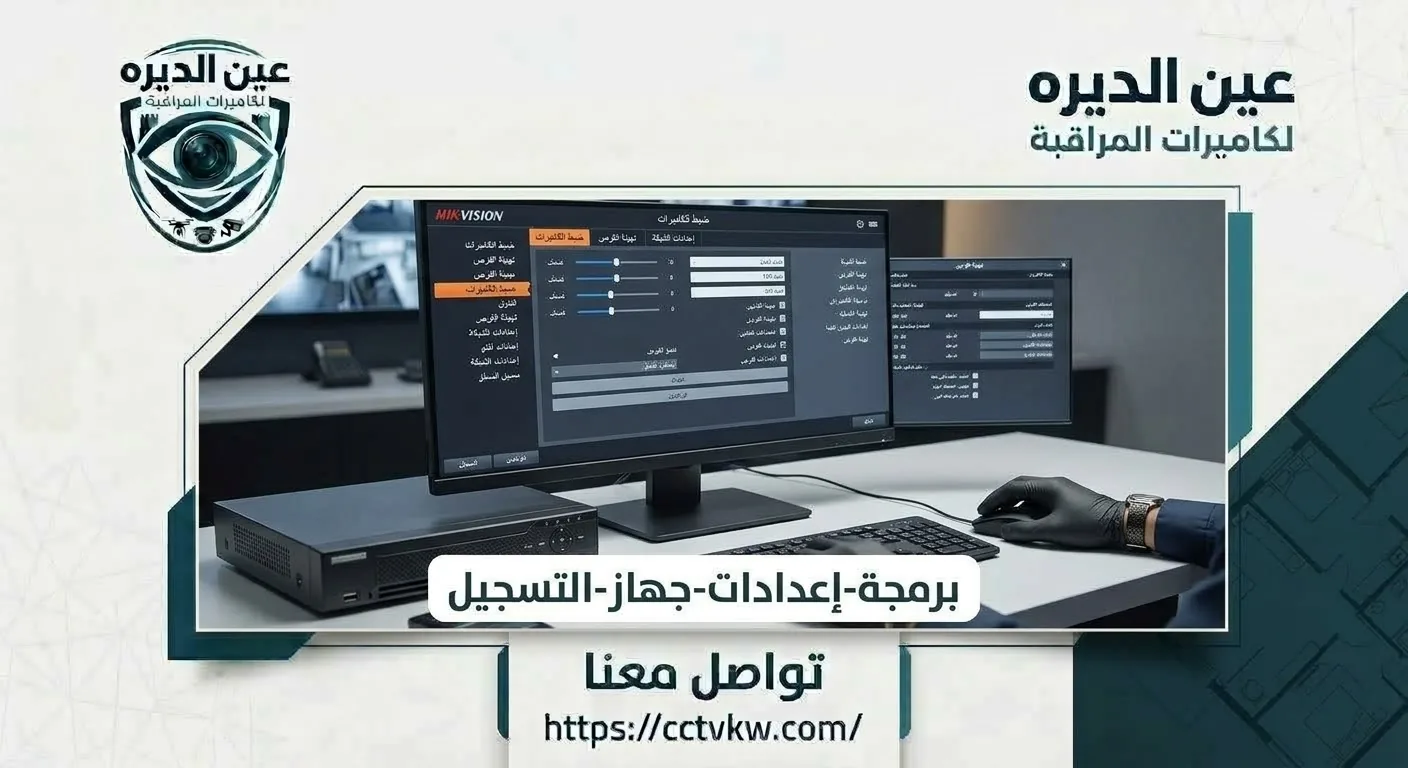
One of the worst situations for a CCTV owner is this: an incident or theft happens, you go back to the footage, and discover the recorder has not been saving anything for days or weeks. The cameras were showing a normal live picture and the monitor was on, yet no clips were stored.
This problem is more common than most people expect, because many owners treat a live picture as proof that the whole system works. This article explains how to confirm that your DVR or NVR is really recording, the most common causes of recording failure, hard drive problems, and the steps a technician follows to diagnose and repair the fault.
How Can You Confirm the DVR Is Recording?
The only reliable method is to open the playback menu, choose a recent day and play a clip from every camera. If recordings appear continuously with the correct time, the recorder is working. Long gaps, missing days or cameras with no footage indicate a problem.
Other helpful signs:
• Recording indicator: many recorders show a small icon on each channel while recording.
• Hard drive status: the storage menu should show a normal status without warnings.
• Oldest stored recording: if the oldest clip is only a day or two old despite a large drive, there may be a settings or drive issue.
We recommend running this check at least every two weeks, because catching the problem early protects important footage.
It also helps to decide who is responsible for checking the system at home or in the shop. Many systems are installed and then not reviewed for months. Assigning one person to review recordings regularly, even for a few minutes, reveals problems before they turn into a real loss.
DVR Shows Live Images but Saves No Footage
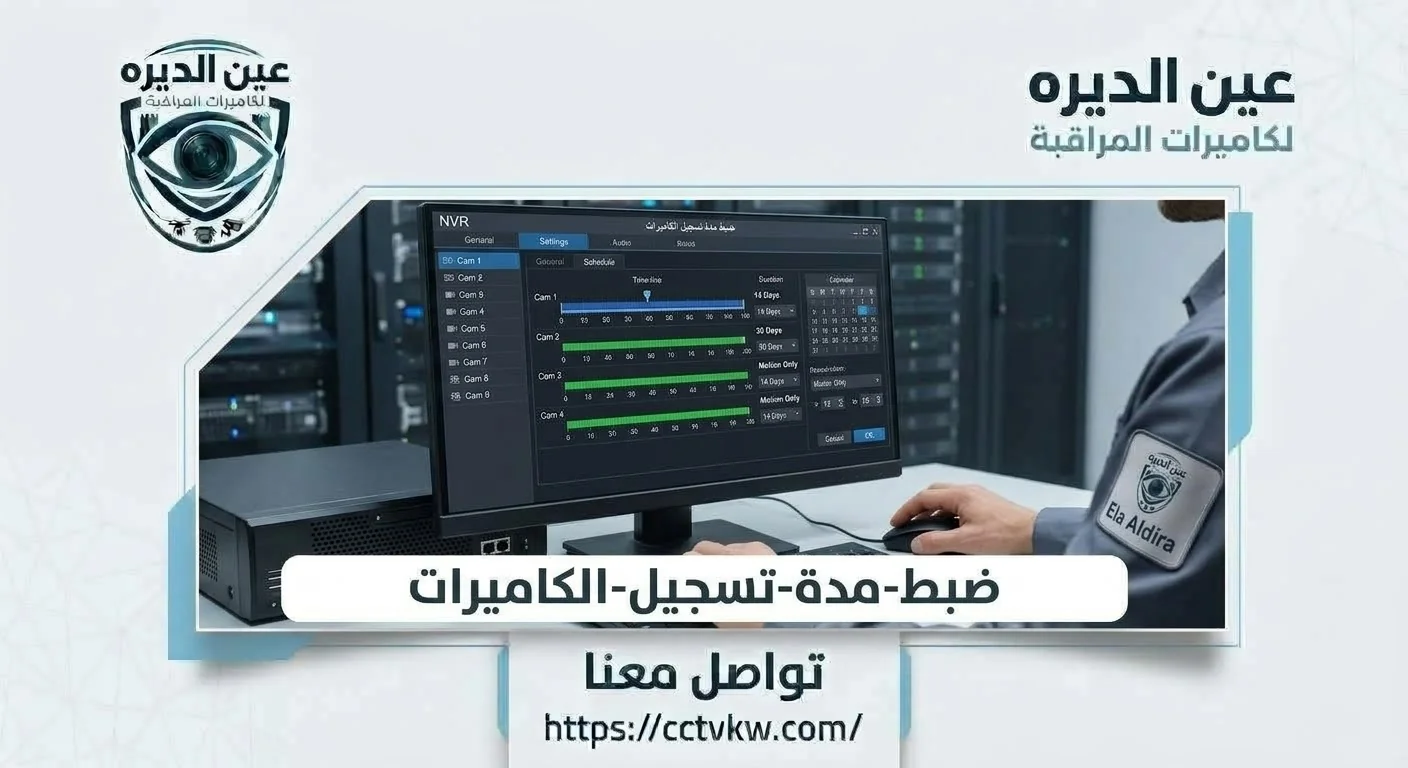
This is the complaint we hear most. Live view runs separately from recording, so a recorder can display cameras without saving anything. Common causes:
• The hard drive is missing or not recognized.
• The drive is full and overwrite is disabled.
• The recording schedule is disabled or set incorrectly.
• Motion recording is enabled but sensitivity is too low.
• Firmware faults after an update or power cut.
Live pictures do not prove recording works
The monitor depends on the signal reaching the recorder, while recording depends on the hard drive and settings. Every camera can be live while the drive is completely dead. Never judge the system by live view alone; always check playback.
NVR Does Not Recognize the Hard Drive
If the storage menu shows no drive, or an abnormal status, the recorder cannot save footage. Possible causes:
• The internal data or power cable is loose or damaged.
• The drive itself is failing or has bad sectors.
• A new drive has not been initialized in the recorder.
• The drive is incompatible in type or capacity.
• The recorder's power supply is weak and cannot feed the drive.
An NVR that cannot detect its drive
When a drive error appears, avoid opening the recorder yourself without experience, especially if it holds footage you need. A technician first checks internal connections, then tests the drive on another device or diagnostic tool, and then decides whether the fault is in the drive or the recorder.
Technician for DVR and NVR Repairs in Kuwait
A technician who specializes in recorder repair works methodically: starting with the simplest and most likely causes, preserving existing footage as far as possible, and only formatting or resetting once no alternative remains.
Give the repair technician useful symptoms
To speed up diagnosis, prepare this information:
• Recorder brand and model if known.
• Number of connected cameras.
• When you first noticed the problem.
• Any power cut, update or change before the fault.
• Any message on the screen, ideally photographed.
• Whether older footage needs to be preserved.
Recorder Suddenly Stopped Saving Footage
When a recorder that worked normally suddenly stops, a specific event usually triggered it. In Kuwait, common triggers are sudden power cuts or fluctuations and high temperatures around the recorder in summer, especially inside closed cabinets without ventilation.
Recording stopped after a power failure
A sudden power cut can cause:
• File system damage on the drive that needs repair or reinitialization.
• Lost settings or a cleared recording schedule.
• A wrong system clock, so footage shows incorrect dates.
• Damage to the recorder's power supply.
The preventive answer is a UPS for the recorder, so it rides through short outages and shuts down safely during long ones.
Why Do New DVR Recordings Disappear?

Some customers report that recordings vanish quickly or that only a day or two is kept. Common causes:
• Overwrite is enabled with a small drive.
• Resolution and frame rate are higher than necessary, filling the drive quickly.
• Maximum retention is set to only a few days.
• Bad sectors reduce the usable capacity.
Why footage disappears earlier than expected
Overwrite is necessary for continuous recording, but drive capacity must suit the number of cameras and resolution to keep enough days. If new clips themselves are disappearing, it points to a drive or file system problem that needs immediate inspection.
Hard Drive Initialization Failure
If you try to initialize the drive from the recorder and it fails, the drive is usually faulty or incompatible. In some cases the issue is the connection or the recorder's firmware.
Treat disk initialization failures carefully
Before declaring the drive dead, a technician checks:
• Internal data and power connections.
• Drive health using a diagnostic tool on another device.
• Compatibility with the manufacturer's supported drive list.
• Recorder firmware version and whether an official update is needed.
Important: initialization erases all stored footage. If clips matter, try to copy them first.
In shops and stores that operate around the clock, a backup drive or a second recorder for the most important cameras, such as the cash counter or main entrance, is a wise investment. It ensures that one failed drive does not mean losing all footage.
Check Continuous Recording Settings on NVR
Many "not recording" cases are settings issues, not hardware faults. The schedule may cover only certain hours, motion mode may be enabled on a channel with little movement, or the channel may not be enabled for recording at all.
Confirm the recording schedule per channel
Check each channel separately:
• Is recording enabled for this channel?
• Which mode: continuous, motion or alarm?
• Does the schedule cover every hour and every day?
• Is the main stream recorded at suitable quality?
• Are the recorder's date and time correct?
Hard Drive and Recording Diagnostics
1. Open playback and find the last saved recording.
2. Check drive status in the storage menu.
3. Inspect internal connections and power supply.
4. Copy important footage before any step that erases data.
5. Test the drive with a diagnostic tool.
6. Review the schedule and per-channel settings.
7. Update firmware from the official source if needed.
8. Run the recorder for a period and review footage to confirm the repair holds.
What Repair Work Might the Recorder Require?
|
Factor |
What it determines |
|
Fault type (settings / drive / recorder) |
Scope of work |
|
Drive condition |
Repair or replacement |
|
Important footage |
Need for a backup before repair |
|
Recorder age |
Availability of updates and parts |
|
Location and ventilation |
Risk of heat-related recurrence |
|
Power supply |
Need for a UPS or new supply |
To prevent the problem from returning after repair, we recommend a periodic maintenance contract covering drive health checks, schedule reviews, dust cleaning and confirmation that the power supply and ventilation are sound. Regular checks cost far less than losing important footage when you need it.
Report a Recording Failure to Deera Eye
If you discover your recorder is not saving footage, do not wait until you need it. The Deera Eye team inspects your DVR or NVR, identifies why recording stopped, preserves existing clips wherever possible, then reconfigures and tests the system before handover. Send your report through the request form on our website with a description and a photo of any on-screen message.
Conclusion
A picture on the monitor does not mean your recorder is saving footage. Check playback regularly, watch drive status and recording schedules, and protect the recorder from power cuts and heat. When a problem appears, ask for a specialist inspection that preserves your footage before any formatting or reset.
Frequently Asked Questions
Why does my DVR show video but not record?
Live view is separate from recording. The cause is usually an unrecognized or full drive, a disabled schedule, or a fault after a power cut.
Does formatting fix a disk error?
It can fix file system errors, but it erases all footage and does not repair a physically failing drive. Never format before copying important clips and testing the drive.
Must I replace the NVR?
Usually not. Many faults come from the drive, settings or power. Replacement is only needed when the recorder itself is proven faulty or is too old to be supported.
How can I confirm a successful repair?
After the repair, let the recorder run for a day or two, then open playback and confirm every camera recorded continuously with the correct time.
Need this service?
Recorder & Storage Installation ←