
Dahua DMSS Camera Setup in Kuwait: Mobile Access
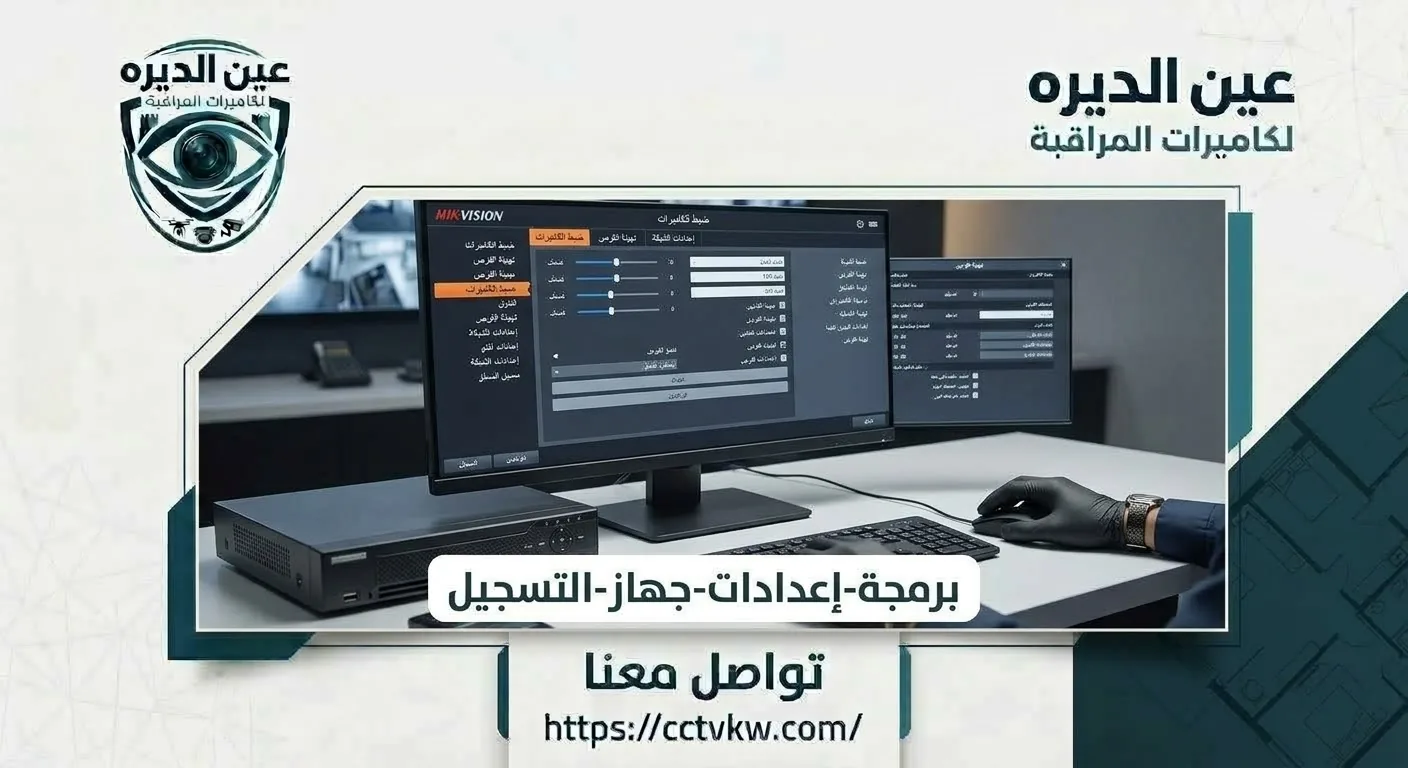
Dahua cameras and recorders are among the most common systems in Kuwaiti homes and shops, and the DMSS app is the official way to view them on a phone from anywhere. Many users still run into trouble: the device shows Offline, the app refuses to add it, notifications never arrive, or access is lost after changing phones.
This article walks through Dahua DMSS setup in an organized way: what you need before connecting, how to add the recorder to your account, iPhone and Android connection, fixing Offline status, configuring motion alerts and moving access to a new phone securely.
What Does DMSS Need for Authorized Access?
Before you begin, make sure you have:
• A Dahua recorder or camera connected to the internet: ideally by network cable from the router, which is more stable than Wi-Fi.
• The device serial number: printed on the label and shown in the information menu, usually with a QR code.
• The device username and password: these are the recorder's own login details, not the app account.
• An updated DMSS app: from your phone's official app store.
• A stable internet connection on site: remote viewing depends on the site's upload speed.
A common mistake is an installer binding the device to their own personal account during installation and handing over the system without transferring ownership. The owner later discovers they cannot add the device to their account. At handover, confirm the device is bound to your account and that you know the administrator login.
Configure a Dahua Recorder in DMSS in Kuwait
Correct setup starts at the recorder, not the app. Confirm the recorder's network settings are correct, that cloud or P2P connectivity is enabled, and that its status shows online. Then move to the app and add the device by serial number or QR code.
Use Account Mode for authorized binding
DMSS can be used with a registered Dahua account or without signing in, storing devices on the phone only. Using an account is better in most cases because devices are tied to your account and can be recovered after changing phones. Without an account, devices are saved only on that phone and disappear if the app is deleted or the phone is replaced.
Note that some devices, once bound to one account, cannot be added to another account with the same authority. This is a manufacturer security measure, so the main account should belong to the device owner.
Connect Dahua Cameras to an iPhone
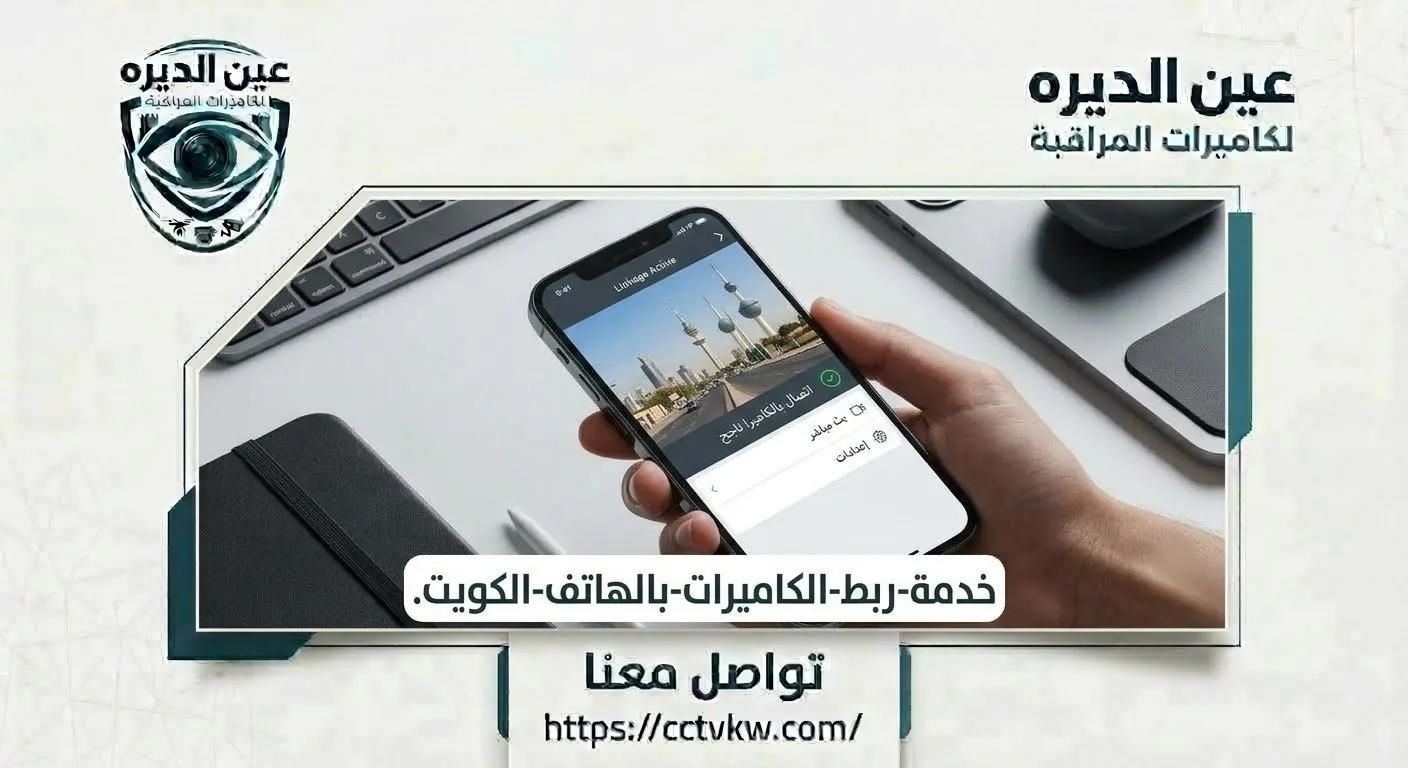
After installing the app on your iPhone and signing in, add the device by scanning the QR code or typing the serial number, then enter the recorder's username and password. If the details are correct and the recorder is online, the cameras appear within moments.
iPhone app access and notification permissions
iOS asks you to approve several permissions:
• Camera: to scan the QR code.
• Notifications: to receive motion and alarm alerts.
• Local network: to discover devices on the same network.
• Photos: to save snapshots or clips to the phone.
If you declined a permission by mistake, enable it again from the app's settings on your iPhone.
View Dahua Cameras on Android Away From Home
Android setup is similar. Many users notice the cameras work only at home and stop as soon as they leave. The usual reason is that the device was added by local IP address instead of serial number.
Test remote viewing beyond the home Wi-Fi
A device added with an internal IP address cannot be reached from outside the network. The fix is to add it by serial number through the cloud service. After adding, test viewing on mobile data with Wi-Fi switched off to confirm remote access really works before relying on it.
Also check battery-saving modes on some Android phones, which can stop the app in the background and block notifications. Exclude DMSS from power saving.
On some older recorders the cloud option may not be clearly visible in the menu, or the recorder may need an official firmware update to work with newer app versions. In that case the update must come from the official source only, after confirming the model and version, because a wrong update can disable the recorder.
Add a Dahua DVR to a DMSS Account
Dahua DVRs are added the same way as NVRs. The connected cameras are analog, but viewing in the app goes through the recorder itself.
Bind the recorder to the rightful owner
The device should be added to the account of the home or business owner, who then shares viewing with family or staff using limited permissions. This keeps full control with the owner, who can revoke any user at any time. Do not share the administrator password; create sub-accounts with view-only rights instead.
Fix Dahua Cameras Showing Offline in DMSS
An Offline status in DMSS is one of the most common problems. Causes include:
• Internet loss on site or a replaced router.
• Changed network settings or a new address on the recorder.
• Cloud connectivity disabled on the recorder.
• A power cut that switched the recorder off.
• A changed device password not updated in the app.
• Incorrect DNS settings on the recorder.
Diagnose Offline at the recorder and network
Proper diagnosis starts on site, not on the phone. Check that the recorder is running, that the router has internet, and then open the recorder's network settings to confirm the cloud status shows online. If it does not, the issue is the network or recorder settings. If it shows online while the app still says Offline, the problem is usually the saved login details or the app version.
To improve remote viewing, set the cameras' sub-stream to a medium resolution suited to the site's internet speed and keep the main stream at high quality for recording. The app usually uses the sub-stream when showing several cameras together, which makes viewing faster and smoother, especially on mobile data.
Configure DMSS Motion Notifications
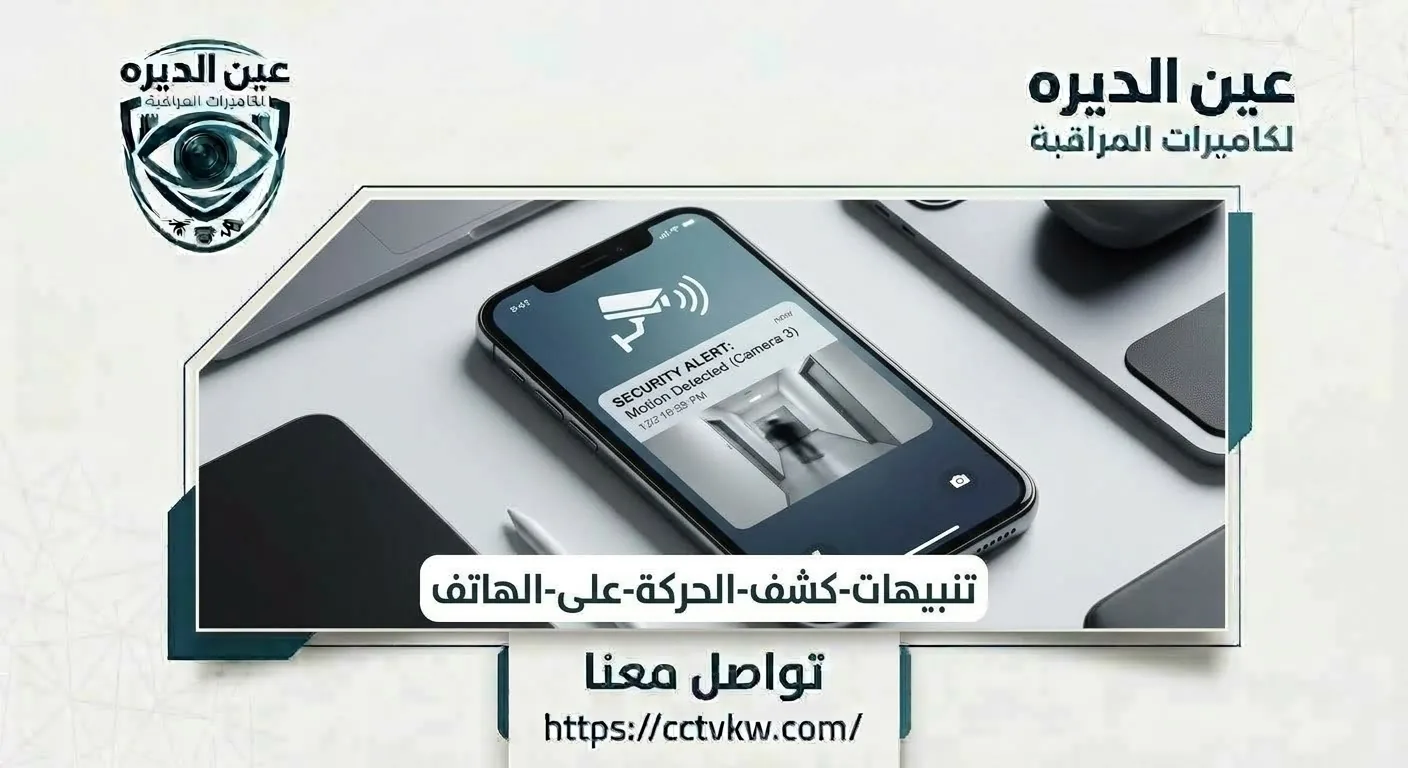
Motion alerts are one of the most valuable mobile features, but they become a nuisance if not tuned. Configuration happens at two levels: on the recorder, where you set the detection area, sensitivity and schedule, and in the app, where you enable notifications per channel.
Make motion alerts useful rather than noisy
To reduce false alarms:
• Limit the detection area to important zones and exclude the street and trees.
• Use person and vehicle detection where supported instead of general motion.
• Adjust sensitivity gradually and test at different times.
• Enable alerts only during set periods, such as nights or while traveling.
Move Dahua Viewing to a New Smartphone
With an account, moving is simple: install the app on the new phone, sign in with the same account and the devices appear automatically. Without an account, each device must be added again manually with its login details.
Move access to a new phone securely
When changing phones:
• Do not sell or hand over the old phone before signing out and deleting the app.
• If the old phone is lost, change the account password and recorder password immediately.
• Review shared users and remove any unnecessary access.
• Confirm that recordings remain on the recorder and are unaffected by the phone change.
Update the app regularly and follow recorder firmware updates from the official source, as updates fix connection issues and close security gaps. Never share your device's QR code with anyone, because it contains data that makes adding the device easier.
DMSS Account and Smartphone Setup Steps
1. Confirm the recorder is online and cloud connectivity is enabled.
2. Update recorder firmware from the official source if required.
3. Replace the default password with a strong one.
4. Install the app and create an account in the owner's name.
5. Add the device by serial number or QR code.
6. Test viewing on Wi-Fi and then on mobile data.
7. Configure motion alerts and detection zones.
8. Share viewing with other users using limited permissions.
What Affects Dahua Setup and Offline Diagnosis?
|
Factor |
Effect on the service |
|
Device type and firmware |
Decides cloud and update options |
|
Site internet quality |
Decides remote viewing stability |
|
Availability of device login |
Without it, owner access must be recovered first |
|
Number of users |
Decides account and permission setup |
|
Smart alerts |
Need per-camera tuning |
|
Router settings |
May need adjustment for stable connection |
Request Dahua DMSS Help From Deera Eye

If your Dahua recorder shows Offline, or you want your cameras connected correctly and securely to your phone and your family's phones, the Deera Eye team configures the recorder and the app, tunes alerts and permissions, and tests remote viewing before handover. Request the service through the form on our website and mention your device model and phone type.
Conclusion
Dahua DMSS setup starts with the recorder and the network before the app. Use an account in the owner's name, add the device by serial number, test viewing away from home and tune alerts so they are useful. When the device shows Offline, start diagnosis on site, because the cause is usually the network or the settings.
Frequently Asked Questions
Can I connect Dahua cameras to an iPhone?
Yes. DMSS is available on iPhone and Android and supports adding Dahua devices by serial number or QR code with the device login.
Why does DMSS show Offline?
Usually because of internet loss on site, changed network or router settings, disabled cloud connectivity or a changed device password.
Do I need an account to add devices?
It is not mandatory but strongly recommended, because the account stores devices, makes moving to a new phone easy and gives the owner better control of permissions.
Will changing phones delete footage?
No. Footage is stored on the recorder's hard drive, not on the phone. Changing phones only affects how you access the viewing.
Need this service?
CCTV Programming & Mobile Setup ←